Week 4: Lecture Notes

Instructional Design

  • Instructional Design is the idea on how to “do something”, or to explain “how something works”.
  • We use it in everyday life such as trying to navigate a phone system, audio instructions, ticket machine etc…
    • Ikea as an example distribute visual instruction leaflets with Ikea flatpack furniture, they offer completely language free as they sell into a global market but they are also simplistic to the point of being useless.
  • Cognitive load theory (Sweller 1988) – the split attention effect
    • refers to the idea of working memory, which refers to how we manipulate information stored in our short-term memory.

Sweller, M, W. Paas. (1988). The Split-Attention Effect. [Image]. Retrieved February 24, 2019, https://vimeo.com/319375981

Kinds of Interaction

Cairo, Alberto: The functional art: an introduction to information graphics and visualisation

  • Instruction – by clicking buttons
  • Conversation – back & forth dialog
  • Manipulation – drag & drop elements
  • Exploration – open, playful, game-like
  • Challenges
    • limited screen area
    • limited resolution
  • Opportunities
    • Time
    • Layering

Challenges for User Preferences –

  • Redundancy – in instructional design offering users options of text heavy set of instructions like a recipe + visual instructions.
    • allow the user to skim back & forth on these screens, to aid their navigation
    • sense of control

Reflection

I think the most important aspect of this pod would be the set of challenges for the user preferences which Leon discussed in his last point of the pod, because it’s the main focus on how will the user be able to interact with the work.

The important points Leon touched based on was the idea of redundancy where in instructional design is the idea of offering user’s option of text heavy set of instructions like a recipe + recipe instructions, as well as allowing the user to skim back & forth on the screen to aid their navigation, which i think in my opinion is the most important part of the discussion of instructional design.

Week 3: Lecture Notes

Design Patterns

  • Mobile First? Starting with a small screen is effective because it forces us to prioritise. choose and alter our mental structure which is accustomed to the larger screens as a desk stop

Christopher Alexander first discovered design patterns

  • Key points in the book
  • The book goes beyond style and more than just visual repetition
  • They’re similar and reusable solutions that have a working function often seen as an interface and software design
  • This book uses words to describe patterns supported by drawings, graphs and charts
  • It describes exact methods for constructing practical safe and attractive designs at every scale in entire regions, through cities, neighbourhoods, gardens, buildings, rooms etc…
Screen grab from Week 3 lecture pod ‘Design Patterns for screen’

Design Pattern examples:

  1. Hamburger menu – found on apps/sites
  2. Account registration – “”
  3. Long scroll – scrolling on apple iwatch/iPhone
  4. Card layouts – information such as a title, username, picture and various icons
  5. Hero images
    • Fastest way to grab user’s attention
    • Commonly found above the scroll followed by a zig zag section on cord spaced arrangement
  6. Animation
    • Scale animations – interaction tool more impacts on users, pop up notification
    • Small scale animation – spinners, hover tool, loading bars
    • Loading animations – popular for flat design minimal designs, portfolios
    • Navigation & Menus (non-scrolling) animation – can be used to save screen space, they reveal a menu by clicking on a specific button & preventing a jarring transition.
    • Hover animations – gives a more tuative feel to a site, as users’s, mouse over content an example of this is tool tips
    • Gallery & Slideshow – effective way to show images without over-burning the users, i.e great for photography sites
    • Motion animation – eyes are a natural drawing to motion which is a perfect tool for drawing a user’s attention. It can also be helpful with visual hierarchy, it can help add interest & intrigue to forms, cause for actions and menu items
    • Scrolling Background animation/video – smooth scrolling relies an animation relies on animation and gives further control to the user to determine the pace of how the animation unfolds.
  7. Material Design –
    • in 2015 google launched it’s new style language material design
    • it uses shadow effects of concepts of movement & depth in order to create designs that appear move realistic to the user
    • Material design is limited to app design
    • intended to provide user interface & user experience across devices
    • the goal of material design is to create clean design that will focus on user experience
  8. Responsive design –
    • Represents relatively simple and cheap way foe businesses that are fully functional website.
    • Comes with some issues if not carried out properly – most important is the performance
    • Tends to be minimalistic to keep the page height down & size
    • Great to work with cards
  9. Flat design – e.g. apple IOS

Reflection

I think the most important part of this lecture pod is from the start of the video where Sarah discusses a movement which is happening at the moment called ‘mobile first’, which means starting with a small screen. As said by Sarah, “it’s more effective rather than adapting to a larger design to a smaller one, because it forces us to prioritise, choose & alter our mental structure which is accustomed to the larger screens as a desktop computer”.

I completely agree with this statement because it helps the user to learn the process along the way resolving in adaptations which is important taking this certain aspect of work into a different industry for example.

UI Flowchart

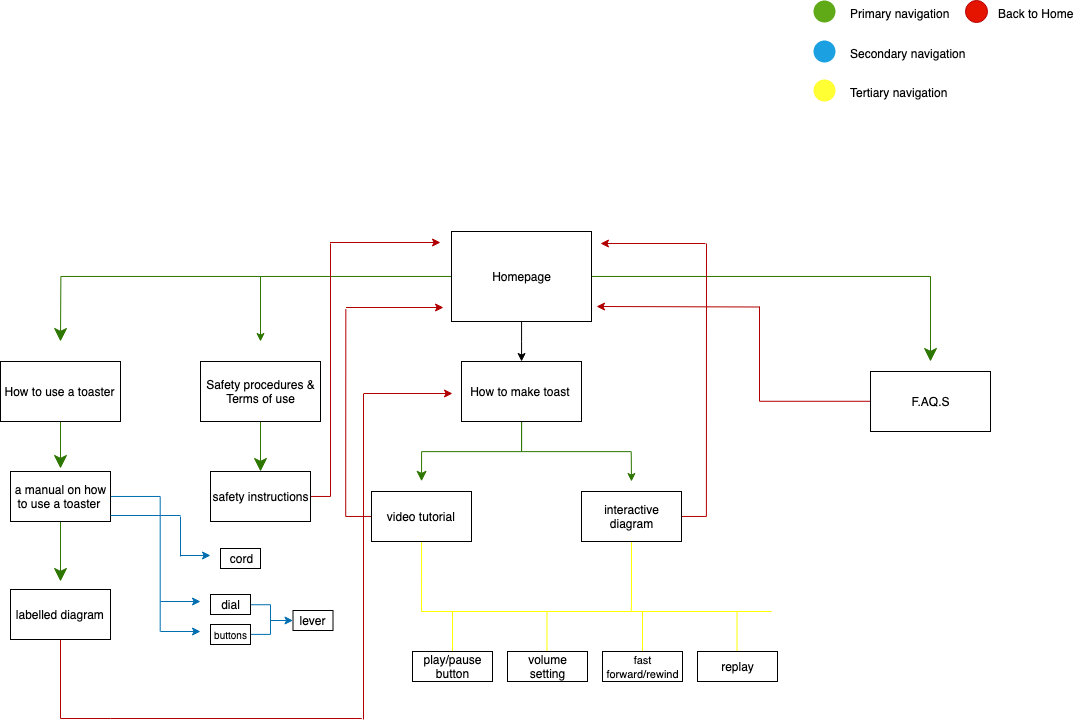
In class we were required to design a UI flowchart which was based off on our toast sitemap, it gave me the understanding of the process of how to develop a plan on creating an interactive design. It can be recommended to any individual of any age who owns a device where they have access to the internet.

Toast: User Interface Sketch

In class we were given the task of sketching User Interface designs for the theme of toast

This homepage will involve the use of 4 primary navigation menus to interact with. It will also include the image of the image of the toaster and toast.

  • The 1st sketch on this image involves on the idea of how to use a toaster if you haven’t used one before this interactive design will allow the user to hover over the different parts on the toaster which will pop up with the name of the part and how to use it.
  • The second sketch will involve a video which guides the user on the making the toast. It will be a step by step tutorial which will allow the user to press and pause the video to follow along as well as fast forward/rewind setting if the steps take too long, and a volume setting to control the sound.
  • For the secondary navigation there will be a little animation icon in the bottom right corner which can direct you to the homepage if need be

Steps on How to make toast

  1. Remove the clip off the packet
  2. Open the packet till it is easily accessible
  3. How many slices of bread, 1 or 2?
  4. Take the slices that the person intends to eat and place them in the slots of the toaster
  5. Plug in power cord for toaster into power socket, ensure the safety switch is turned to off
  6. Turn safety switch to on
  7. Observe settings on toaster dial
  8. Turn dial to desired number/setting
  9. Locate the lever to begin the process of toasting
  10. Push down lever completely
  11. Wait until toast pops up out of the toaster
  12. Check the darkness of the toast. Is it medium to dark brown?
  13. If yes, wait until toast is not too hot to touch
  14. When safe remove toast from the toaster, then place it on a plate
  15. Spread the condiment on the toast
  16. The toast is now ready to be eaten

Week 2: Lecture Notes

Process & context

Design Process Overview: Part 1

  • Bill Verblank’s concrete process theory to the general overview from invention to presentation
  • In this sketch it is going from the invent/invention stage until it includes an error then moves to the idea/ideation –
    • Then to the design phase metaphor
    • Scenario development
    • Engineering phase of task analysis modelling
    • Representation phase.
  • Project ideas start very low tech which can involve:
    • pencil & paper
    • sketchbooks
    • sticky notes
    • Note cards
    • White boards

This helps us understand, define and frame the problem.

  • Early visualisations for diagrams, models, and flows helps us identify, directions, missing information and most appropriate next steps

There are numerous techniques of gathering information of generating ideas and making us solve decisions which involves:

  • Precedent research
  • Observe people – ask questions based on their observation
  • Test prototypes

Part 2: Context

  • When designing interaction we need to know:
    • what people are trying to do?
    • how they may try to do it?
    • what gets in the way or helps?
    • where they might be doing it?

e.g checking bank balance for different devices either going to the supermarket

– relating to context for use

  • Questions to ask ask for contact scenarios;
    • What’s the setting or environment in which the interface or the device will be used? – is it public or private or is it conductive
    • Who will be using the device or interface? – will it be used by one person, or multiple people or how long will the interface be used for? will the person be able to focus on their task, or will they be interrupted while using it?
    • Does the experience need to be extremely simple? – how much complexity can be accepted ?
    • What are the person’s needs & goals? – what are they trying to accomplish or complete?

Reflection

The most important aspect of the lecture 2 pod is again Verblank’s concrete theory because it simply describes the whole process easily from invention to presentation which can give viewers an easier guide to follow when trying to plan a process on what needs to be involved in order to succeed.

Week 1: Lecture Notes

Interactive Design

Interactive Design according to Bill Verblank is a person interacting with the world and getting feedback from the world, an interaction designer has 3 questions to answer which are:

  • How do you do? – pressing a handle/button
  • How do you feel? – feeling cool/hot
  • How do you know? – using a map/path

Mind map of what’s involved with interactive design

Interactivity – interaction

Interactivity can be compared to the idea of interaction, in relation towards a program that responds to user activity. It works together so the total effect is greater then the sum (2 or more). it is capable of acting on or influencing each other.

Gillian Crampton Smith – View on interaction design

Gillian’s definition of interactive design is the idea of shaping our everyday lives through digital artefacts for work, for play and entertainment.

when designing a computer based system you need to know how to design the quality and how it behaves.

Interactive design: 5 key action areas:

  • interactivity
  • information architecture
  • time and motion
  • narrative
  • interface

An example of a theory of interactive design made by Nathan shedroff

Figure 2: Shedroff, N. (1994). Information Interaction Design: Unified Field Theory of Design. [Image]. Retrieved February 24, 2019, from https://vimeo.com/319375480

Reflection

I think the most important aspect of this pod is the idea from Verblank’s perception for interactive designers having to ask themselves 3 questions in terms of interactivity is how do you do, feel, or know? These 3 questions will help with in communicating your thoughts/idea when interacting either with the world, nature, a product, a person etc.